Receive analogue FM-ATV
from 70 MHz to 6 GHz
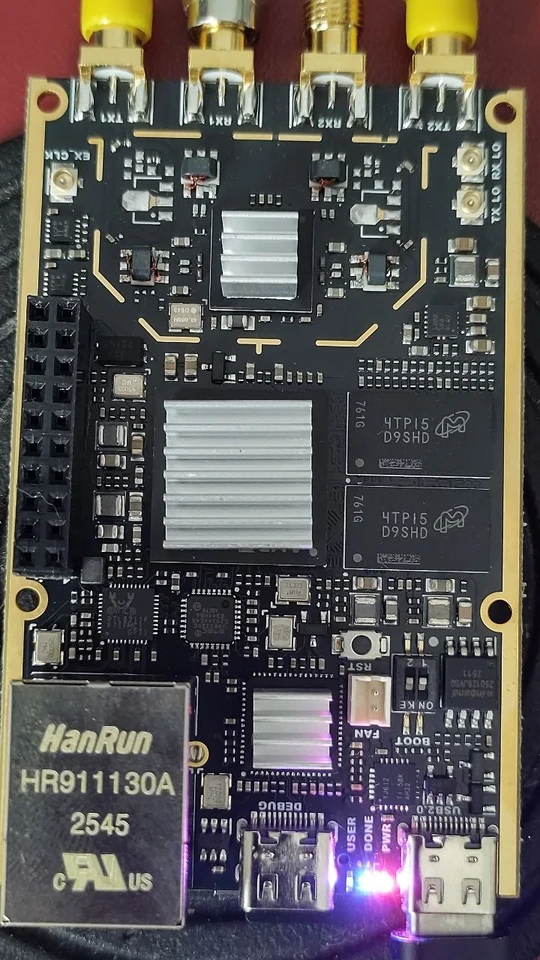
digiATV turns the SDR7020 (Zynq 7020 + AD9363) into a receiver for analogue FM-ATV. The FPGA in the 7020 does the heavy work: the IF filter, the FM demodulator and the NICAM and FM sound. The sound goes straight to the DAC on the 7020. With a converter or LNB in front, higher bands as well.
New in V2.02 (3 November 2026): everything is on the SD card, including your settings. Insert the card, switch on, and after about a minute the web page is ready. Nothing is written to or removed from the 7020's memory: take the card out, and the 7020 is as it was. The IP address stays the same.
New in 2.0: the 7020 now makes the PAL picture itself. You watch in a web browser, on the PC, a tablet or the phone, without installing anything. The Windows program is still included.
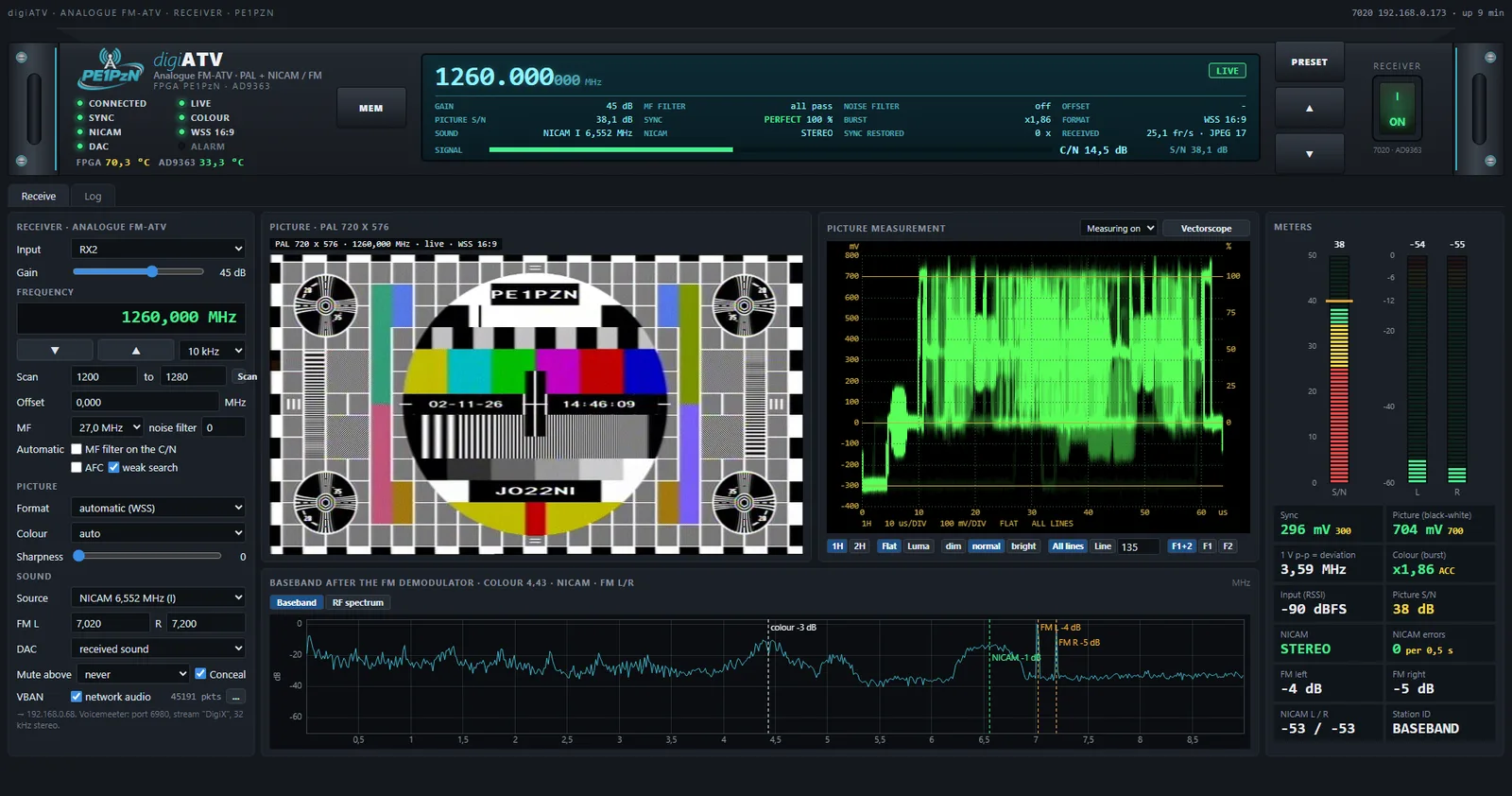
- digiATV web version: the FPGA in the 7020 makes the PAL picture, the 7020 sends it to the browser. Works on any PC, tablet and phone, also over Wi-Fi or a 100 Mbit/s network (5 to 25 Mbit/s). After power off and on the 7020 starts by itself, with the last settings. Everything is on the SD card; nothing needs to be installed.
- digiATV for Windows: the familiar program. The PC makes the picture from the raw signal. Needed: Windows 10 or 11 and a gigabit network cable.
- It does not matter which one you use. Start the Windows program, and the web version steps aside by itself. Close it, and the web version takes over again within about 10 seconds.
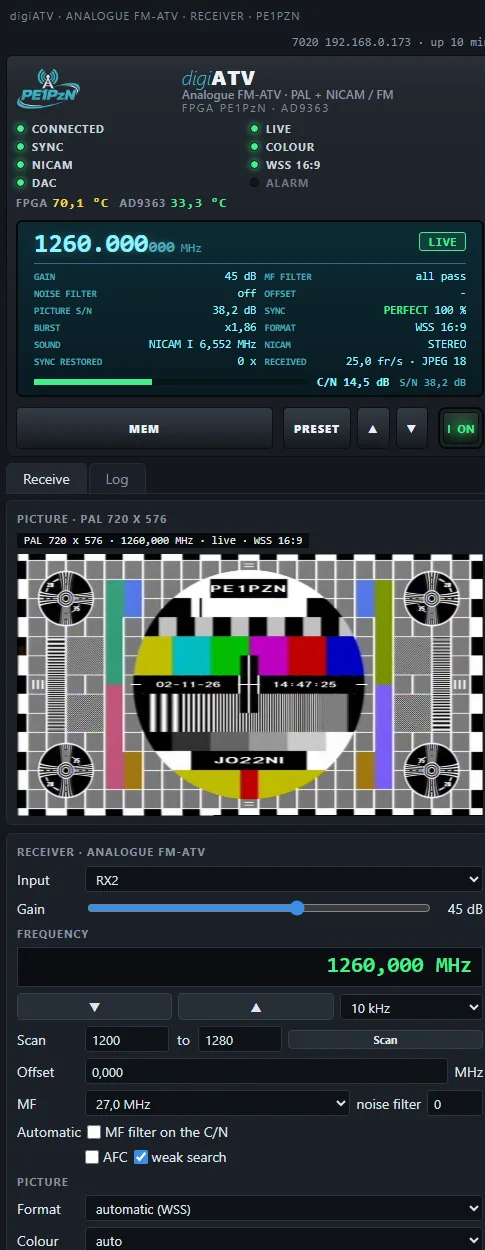
- Picture: PAL 720 × 576, colour or black and white. With a lot of noise the colour switches off by itself, so you see fewer coloured speckles.
- Sound: NICAM (I on 6.552 MHz or B/G on 5.85 MHz) and FM sound left and right. The sound comes from the DAC on the 7020, and you can also listen in on the PC.
- IF filter in the FPGA: from 2 to 27 MHz wide. On automatic, digiATV chooses a narrower filter itself when the signal gets weaker.
- Scan and AFC: search between two frequencies until there is a station, and keep the signal in the middle of the filter.
- Noise filter: averages pictures, so a test pattern with a weak signal becomes calm and readable.
- 16:9 via WSS: if the transmitter sends WSS, the picture switches to widescreen by itself.
- Measuring: C/N, picture S/N, sync, burst, studio waveform (1H/2H, Flat/Luma, one line or all lines), vectorscope, the baseband after the FM demodulator and the RF spectrum.
- Sound over the network (web version): VBAN, for example to Voicemeeter.
- Memories: store frequencies with a name, with an offset for a converter or LNB.
- Receive only: digiATV does not transmit anything.
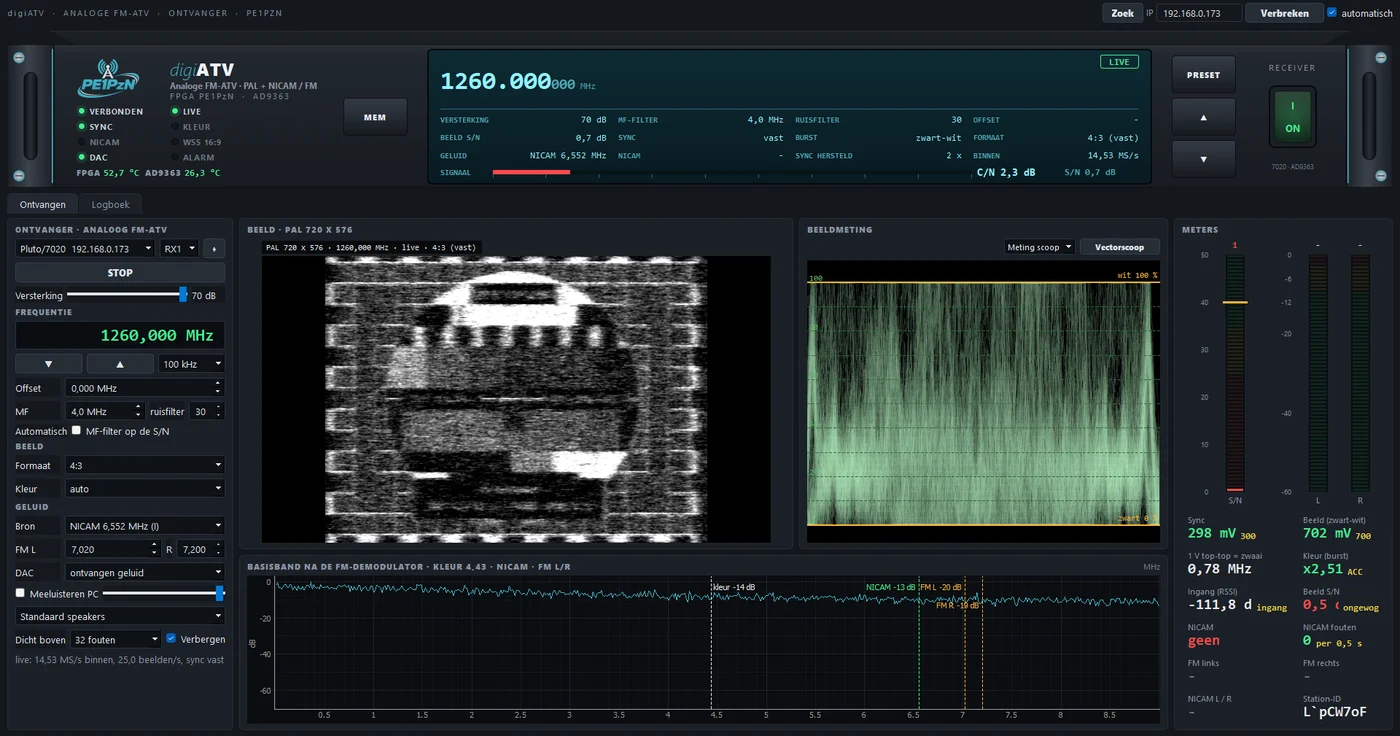
The C/N measures how far the signal rises above the noise floor. That number does not depend on the gain. The display shows it in colour: red below 6 dB, yellow up to 12 dB, green above that.
Web version: 5 to 25 Mbit/s. Wi-Fi, a 100 Mbit/s network and a phone are fine.
Windows program: the picture arrives raw on the PC, about 150 Mbit/s. The network port of the 7020 is gigabit: that is the best route. Via USB the 7020 also becomes a network, but a slow one, in practice 130 to 200 Mbit/s. If too little comes in, digiATV switches to 8 bit by itself (about 120 Mbit/s). The picture stays just as good. A 100 Mbit/s network is too slow for the Windows program; use the web version then.
The program is not signed with a certificate; that costs a few hundred euros per year. So Windows does not know the maker and warns at the first start with Windows protected your PC. Click More info and then Run anyway.
The SHA-256 checksum is shown with the download. In PowerShell you check it with Get-FileHash filename.zip.
WHAT YOU NEED
FIRST TIME
Questions
Everything is explained step by step in the manual (pdf). Something not right? Let me know, preferably with a screenshot and the lines from the Log tab.